
Charger Dashboard
Dashboard Overview
The main dashboard shows the current state of your charger along with key information cards: Power (kW), Session Energy (kWh), and Charging time. Use the "Allowed current" slider to set the maximum charging power.
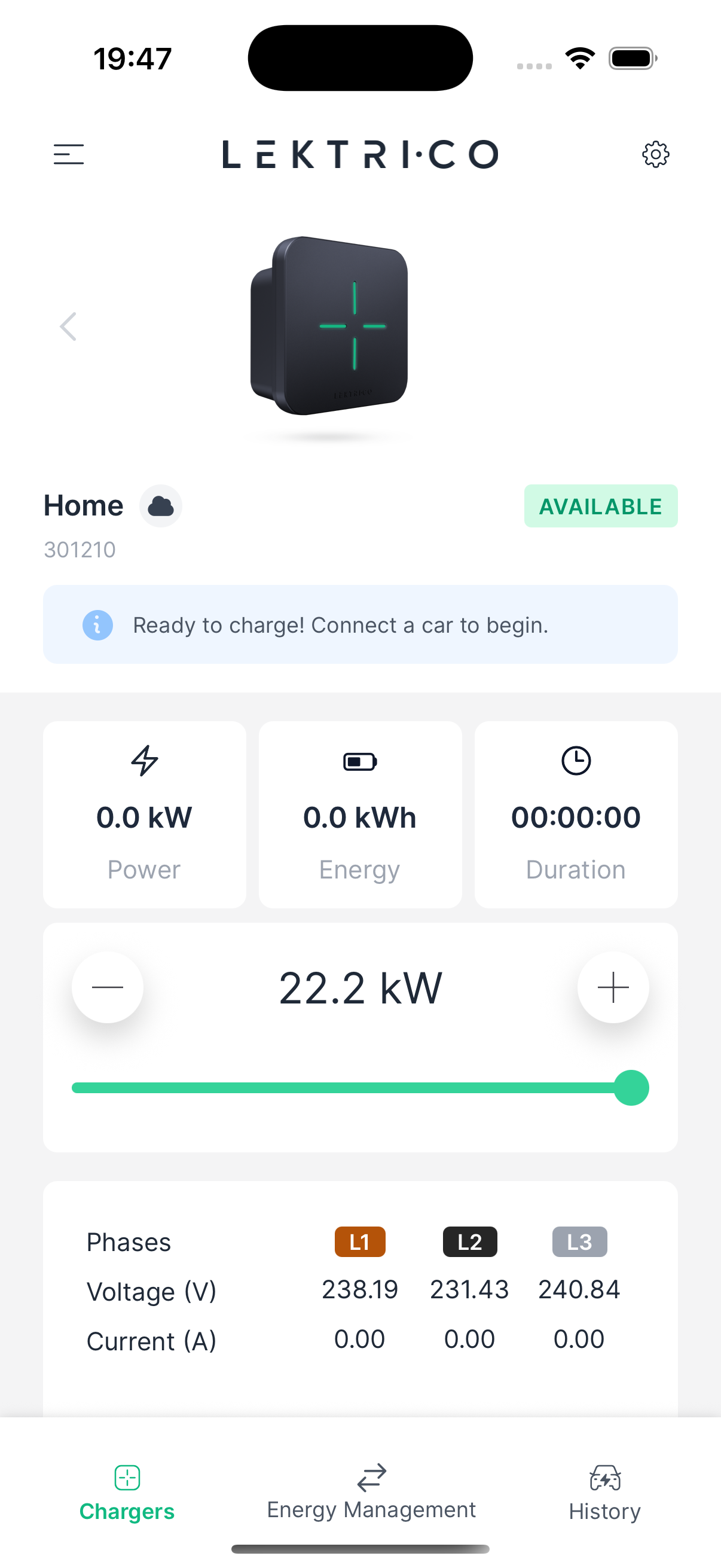
The bottom navigation provides quick access to Chargers, Energy Management, and History.
---
Charger States
The charger displays one of the following status badges:
- Available — Ready to charge. Connect a car to begin.
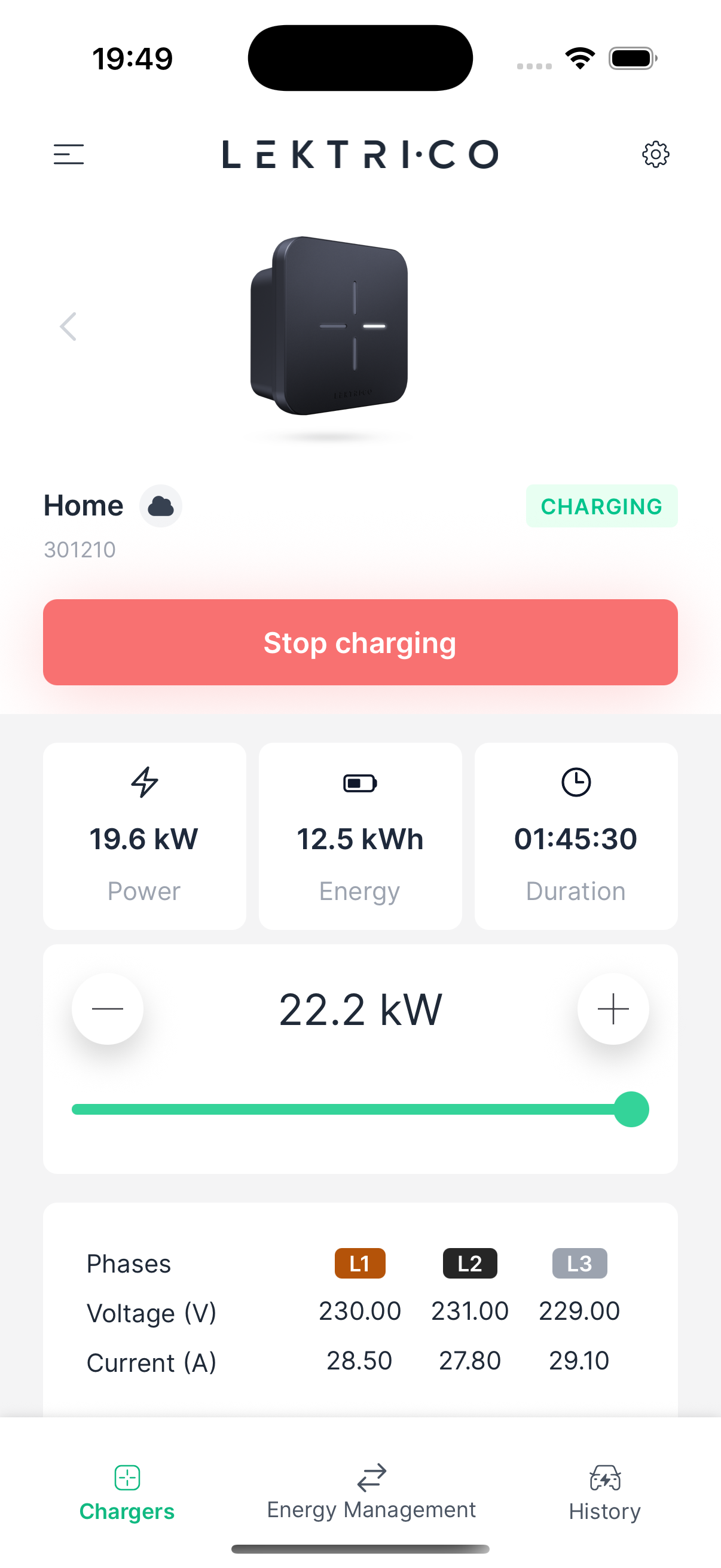
- Charging — Active charging session in progress.
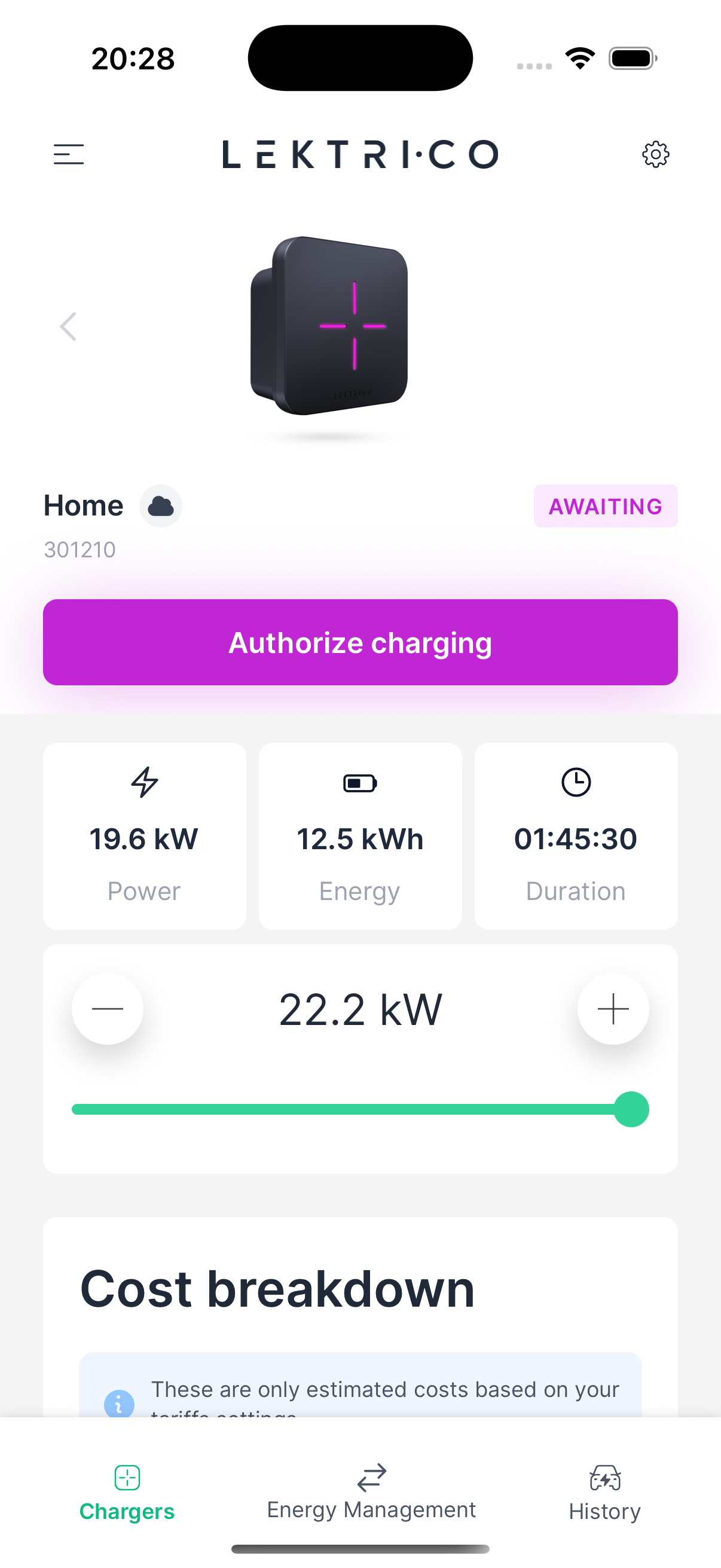
- Awaiting — Waiting for authentication or vehicle response.
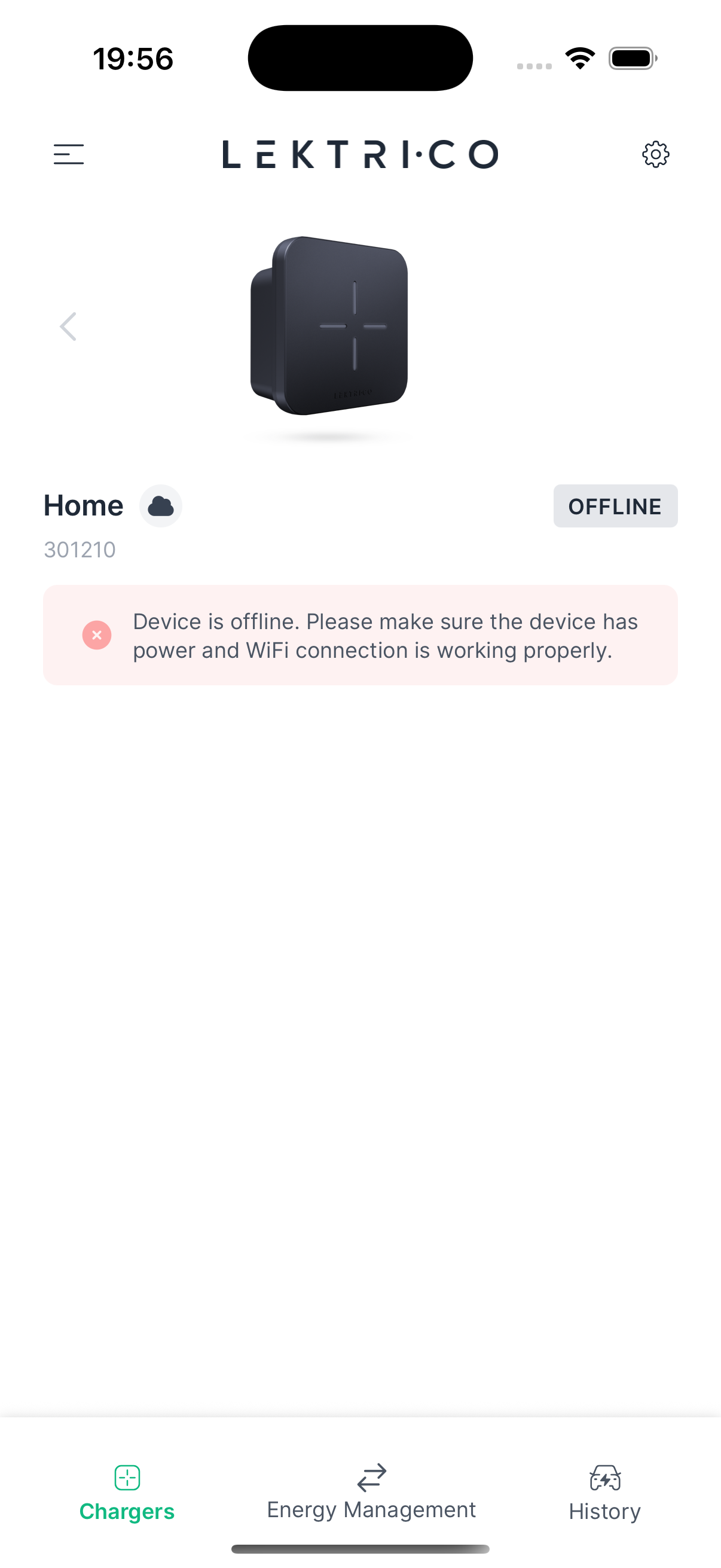
- Offline — Device is offline. Check power and WiFi connection.
- Error — A problem was detected. See the Error States section below.
- Paused — Charging is paused (e.g., by schedule or load balancing).
---
Starting a Charging Session
1. Connect your electric vehicle to the charger.
2. The dashboard will show the charger as Available.
3. Tap "Start charging" to begin.
4. The dashboard switches to the Charging view showing real-time power, energy, and duration.
---
Stopping a Charging Session
1. Tap "Stop charging" on the dashboard.
2. The session ends and statistics are saved to your history.
---
Authorize Charging
If "Plug and charge" is disabled, you must authorize before charging can begin. The dashboard shows an "Authorize charging" button. Authenticate via the app, RFID card, or OCPP.
---
Power Limit
Use the "current" slider to set the maximum current the charger will deliver. The charger will not exceed this limit.
> NOTE: If load balancing is active, power may be further reduced automatically.
---
Cost Card
When energy tariffs are configured, a Cost card appears during charging. It shows estimated cost based on your tariff settings. Tap for a detailed cost breakdown.
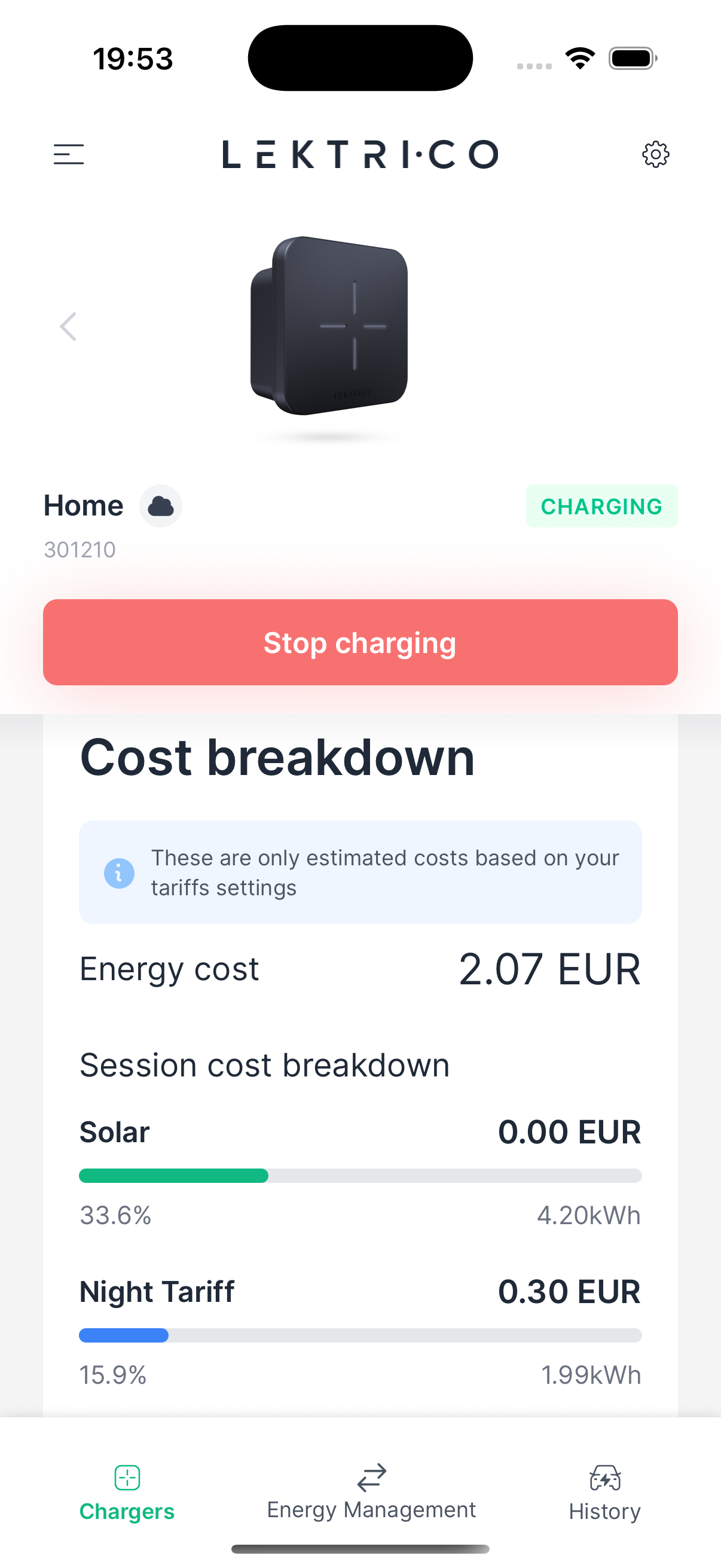
> NOTE: These are estimated costs based on your tariff settings and may differ from your actual energy bill.
---
Advanced Data
Enable "Advanced data" from the Profile menu to see additional technical information about your charging session.
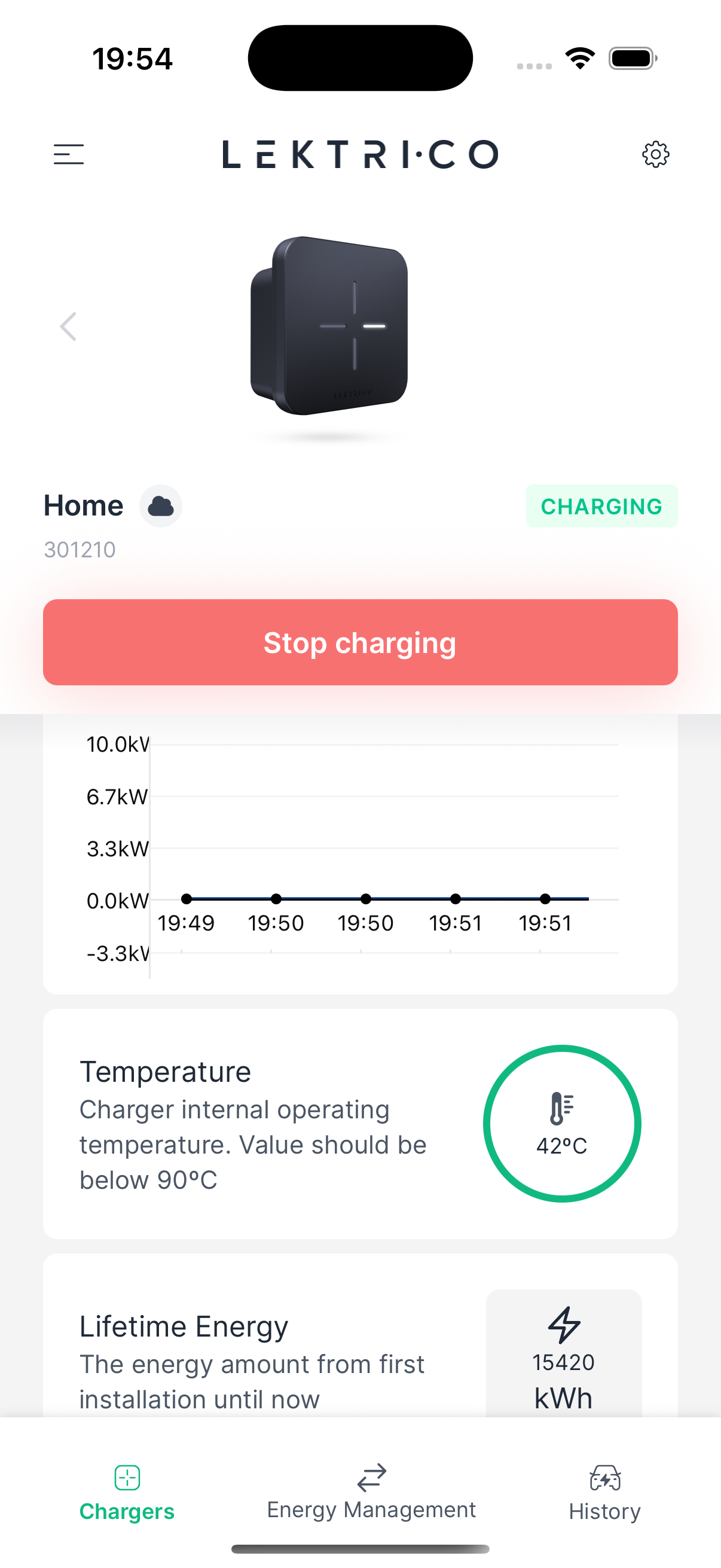
Advanced data includes:
- Per-phase data: Voltage (V), Current (A), Power (kW), Power factor
- Temperature
- Total charged energy (lifetime)
---
Error States
When an error occurs, the dashboard displays the error type and a description.
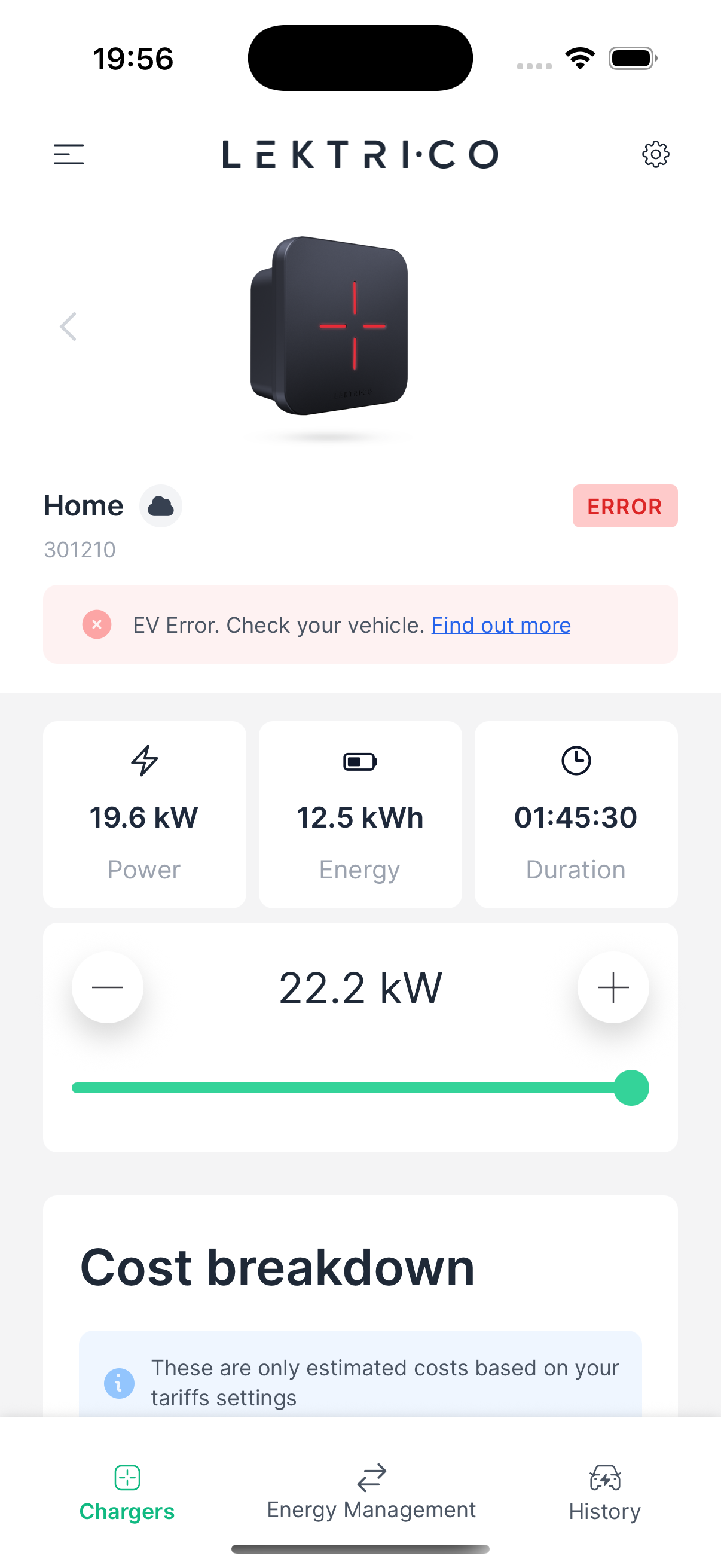
The following error types may appear:
- Car error — Check your vehicle.
- Device getting hot — Temperature is elevated.
- Critical temperature — Dangerously high temperature.
- Overcurrent — Current exceeds safe limits.
- Voltage out of range — Overvoltage or undervoltage detected.
- Residual current detected — RCD protection triggered.
- System error — General system fault.
- Metering error — Internal metering issue.
- Relay failure — DANGER! Disconnect power and contact support immediately.
- EV communication error — CP diode failure.
Tap "See error guide" for more information about the specific error.
> WARNING: If you see "Relay failure," immediately disconnect power and contact LEKTRI.CO support. Do not attempt to use the charger until it has been inspected.