
Schedule Charging
Schedule Overview
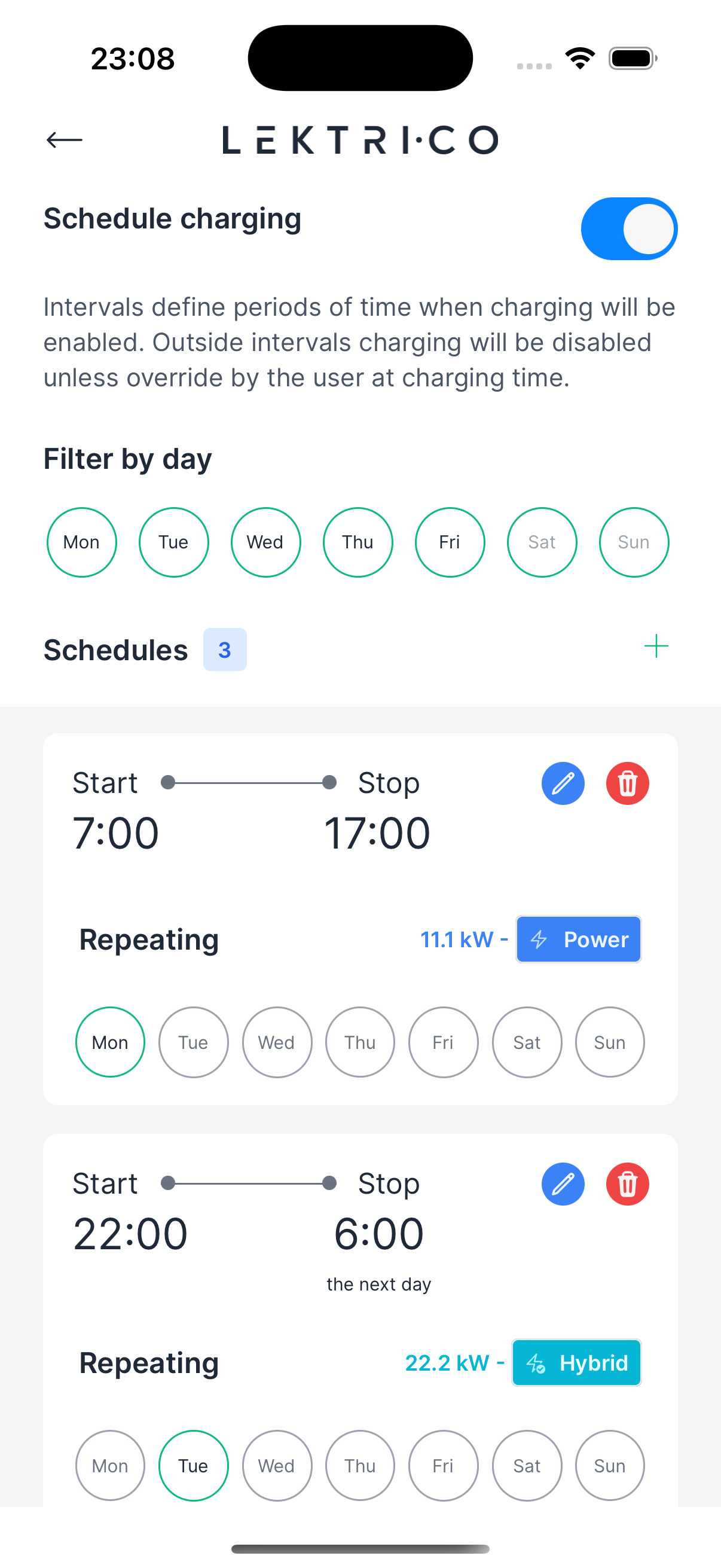
Access "Schedule charging" from the charger settings menu. Schedules define time intervals when charging is enabled. Outside scheduled intervals, charging is disabled unless manually overridden.
---
Enable/Disable Schedule
Toggle "Enable schedule charging" or "Disable schedule charging" at the top of the screen.
- Enabled — The charger follows the configured schedule.
- Disabled — The charger operates normally without time restrictions.
---
Empty State
When no schedules exist, the screen shows: "Nothing planned. Tap to create schedule."
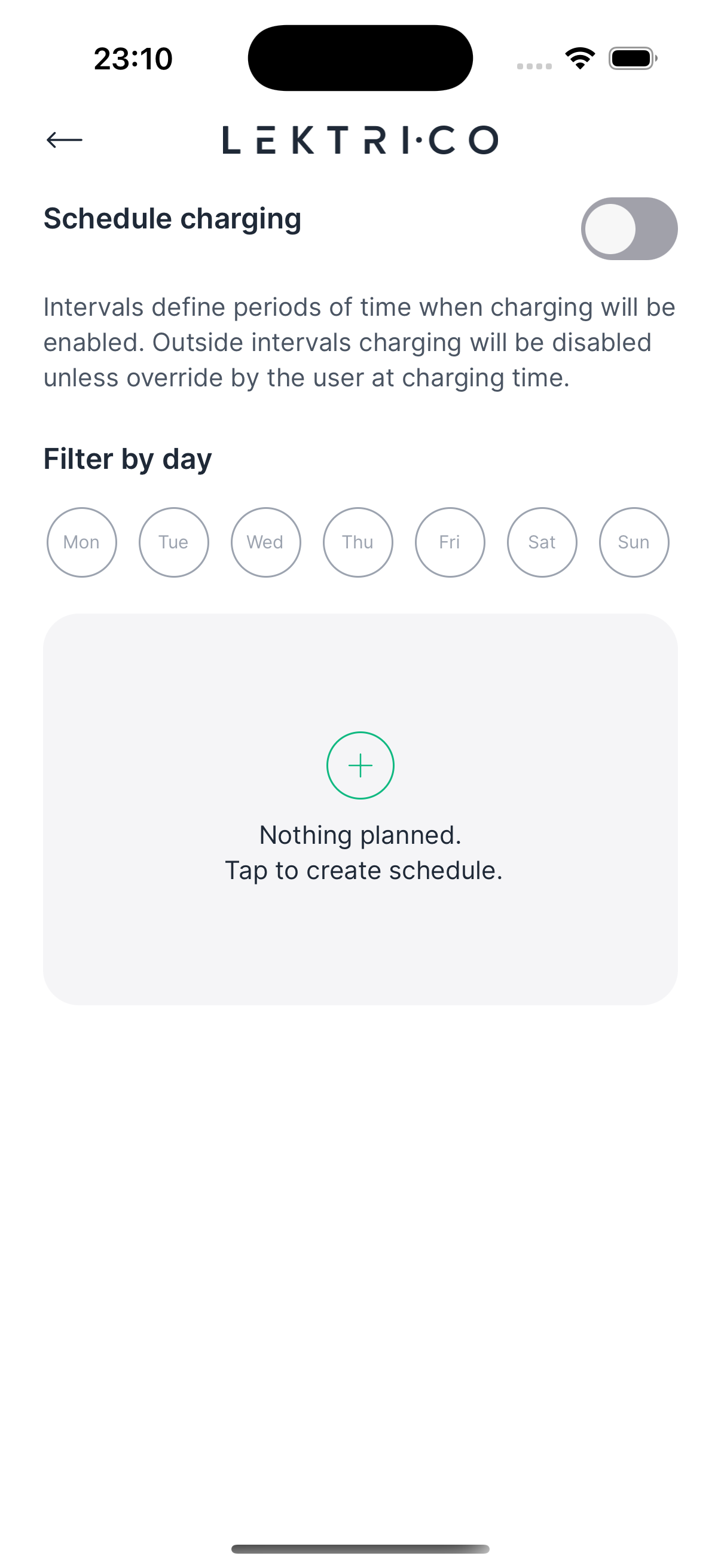
Tap "Add new schedule" to create your first schedule.
---
Create a Schedule
1. Tap "Add new schedule".
2. Select the days of the week under "Repeat on": Monday through Sunday.
3. Set the "Start" time.
4. Set the "End" time (can extend to the next day).
5. Set the charging current for this interval.
6. Tap "Save" to confirm.
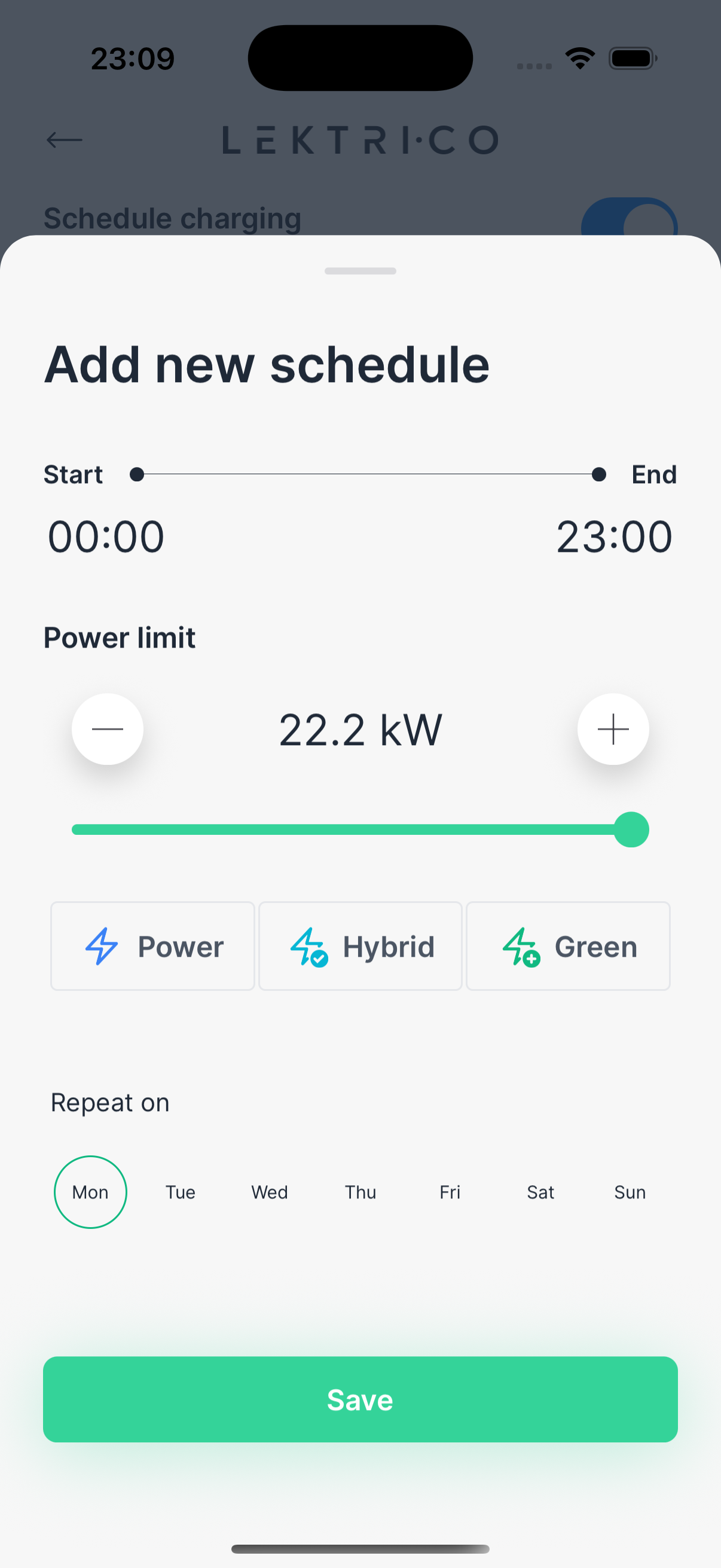
> NOTE: If the end time is earlier than the start time, the schedule extends to the next day.
---
Edit a Schedule
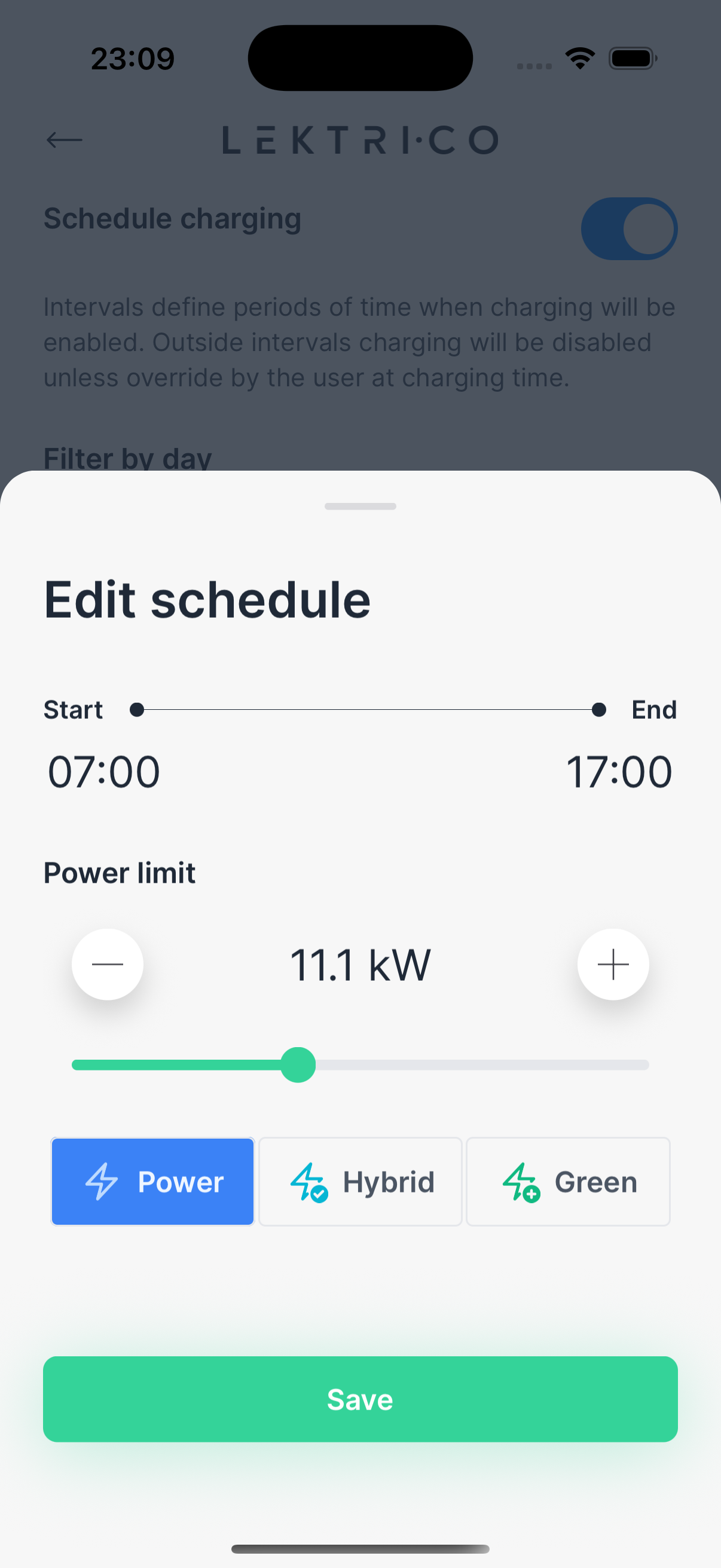
1. Tap on an existing schedule in the list.
2. Modify the days, times, or current as needed.
3. Tap "Save" to update.
4. To delete, tap "Remove schedule".
---
How Intervals Work
- During a scheduled interval — Charging is enabled at the configured current.
- Outside all intervals — Charging is disabled.
- Manual override — You can override the schedule at charging time. The app will ask: "Override active schedule and start charging now?"
> NOTE: Schedule overlaps are not allowed. If a new schedule conflicts with an existing one, you will see an error: "Time schedule overlapping. Please adjust your schedule hours."