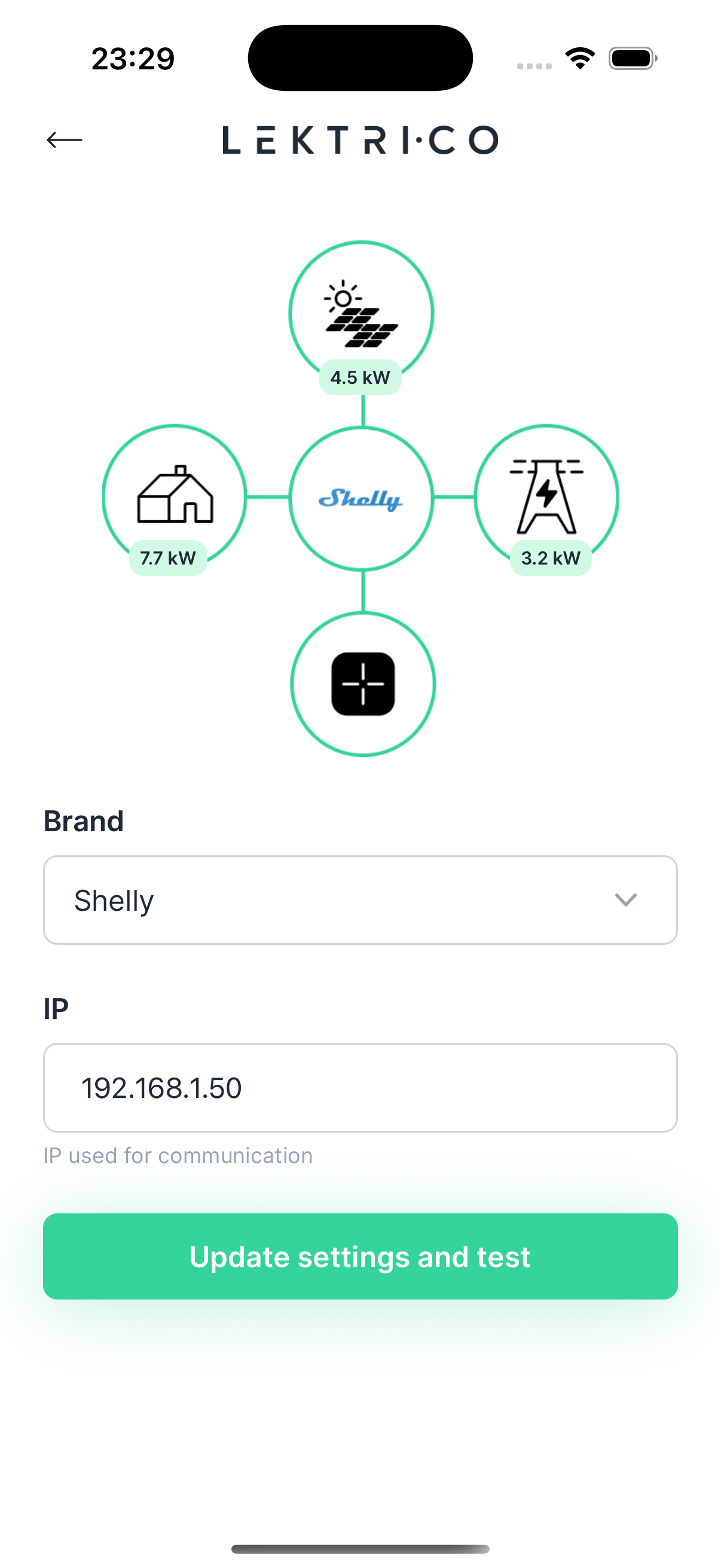
Energy Management
Energy Management
Real-time visualization of energy flow in your home. The Power Flow screen shows: From grid (power imported), From solar (PV production), To house (home consumption), and power going to your charger.
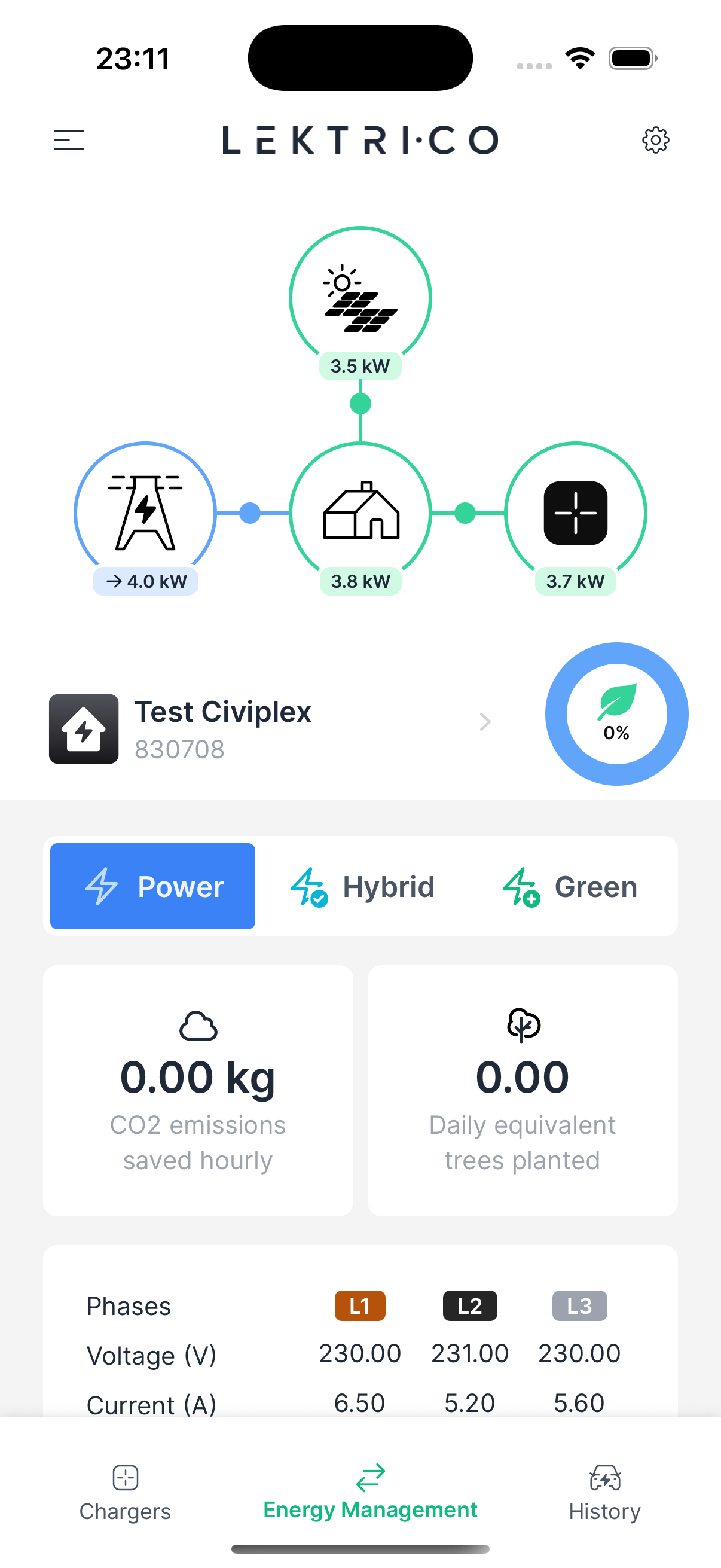
The Green energy percentage indicates how much of your charging power comes from solar. Environmental stats display CO2 emissions saved and equivalent trees planted.
---
Energy Management Settings Screen
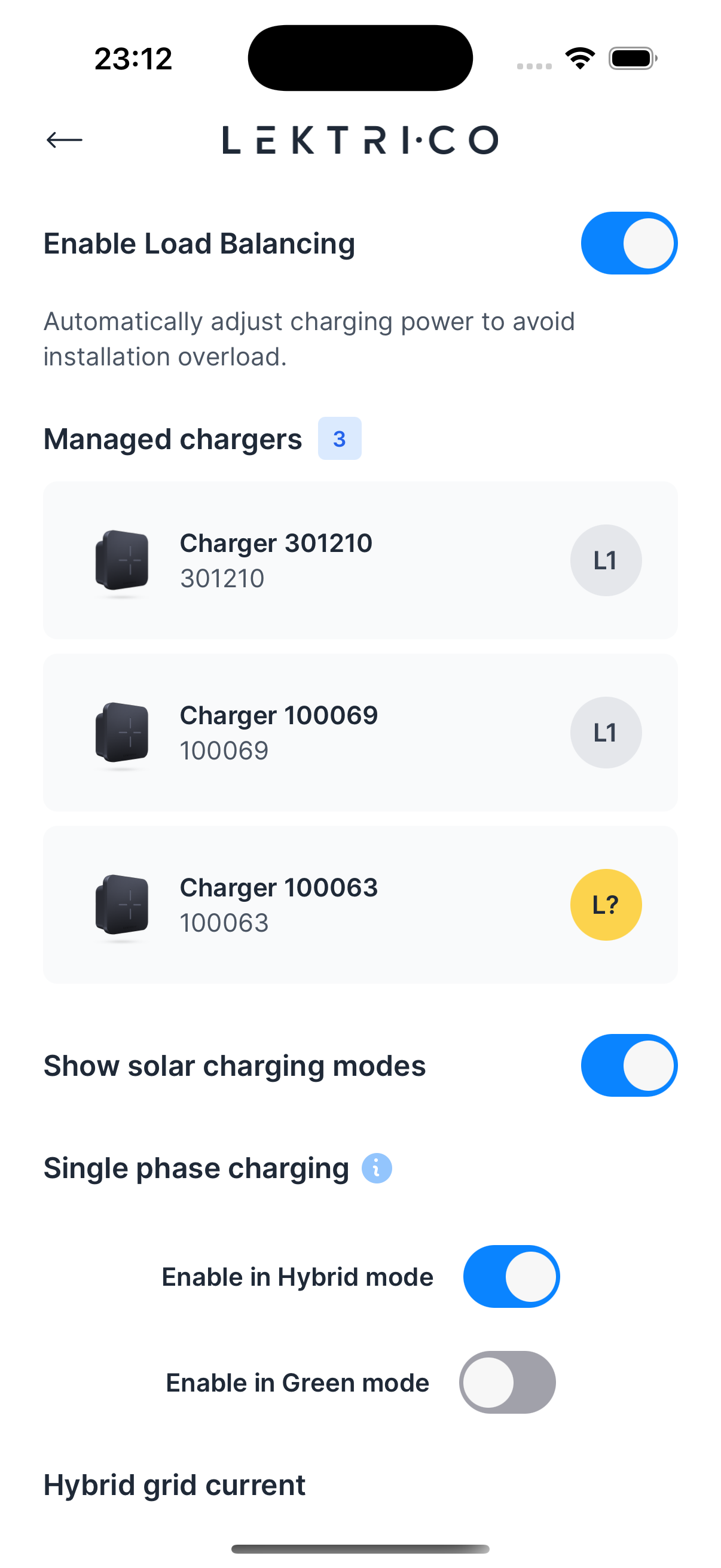
Access via pressing the right top button settings and opens Energy Management Settings tab in the bottom navigation. The screen shows a list of managed chargers and their current status.
Load Balancing
Toggle "Enable Load Balancing" to automatically adjust charging power and avoid overloading your installation.
Solar Charging Modes
When solar is available, select one of these modes:
- Power — Charge with highest available power. Adjusts to avoid overloads.
- Hybrid — Charge with solar surplus or minimum power (1.4 kW). Continues charging even when surplus is insufficient.
- Green — Charge only using solar energy. Pauses when surplus is below 1.4 kW.
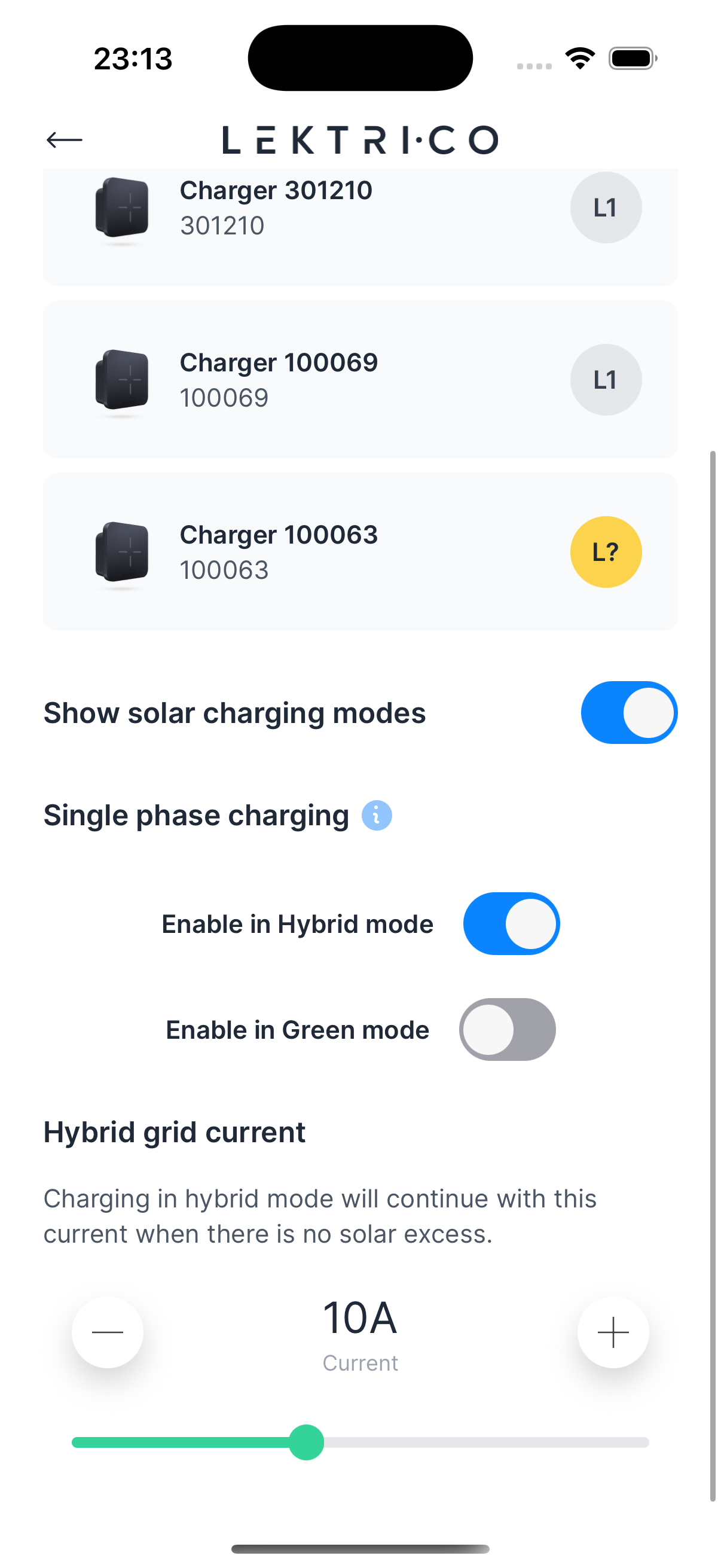
Hybrid Grid Current
Set the minimum current when charging in Hybrid mode with no solar excess. This ensures your vehicle continues charging at a minimum rate.
---
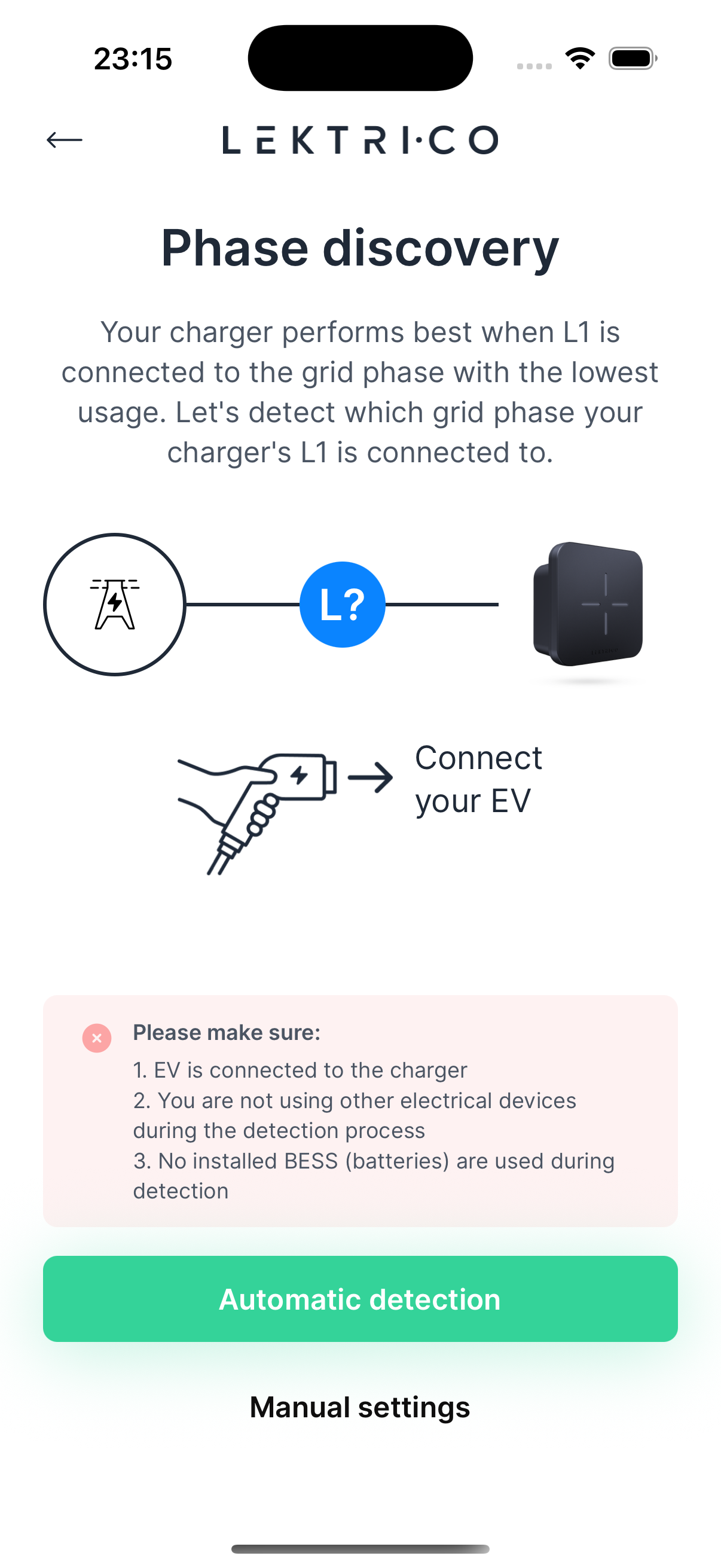
Phase Discovery
Phase discovery detects which grid phase your charger's L1 terminal is connected to. This is required for accurate load balancing.
Running Auto-Detection
1. Navigate to Phase Discovery from Energy Management settings.
2. Review prerequisites:
- EV must be connected to the charger.
- Avoid using other electrical devices during detection.
- No BESS (batteries) should be active during detection.
3. Tap "Automatic detection" to start.
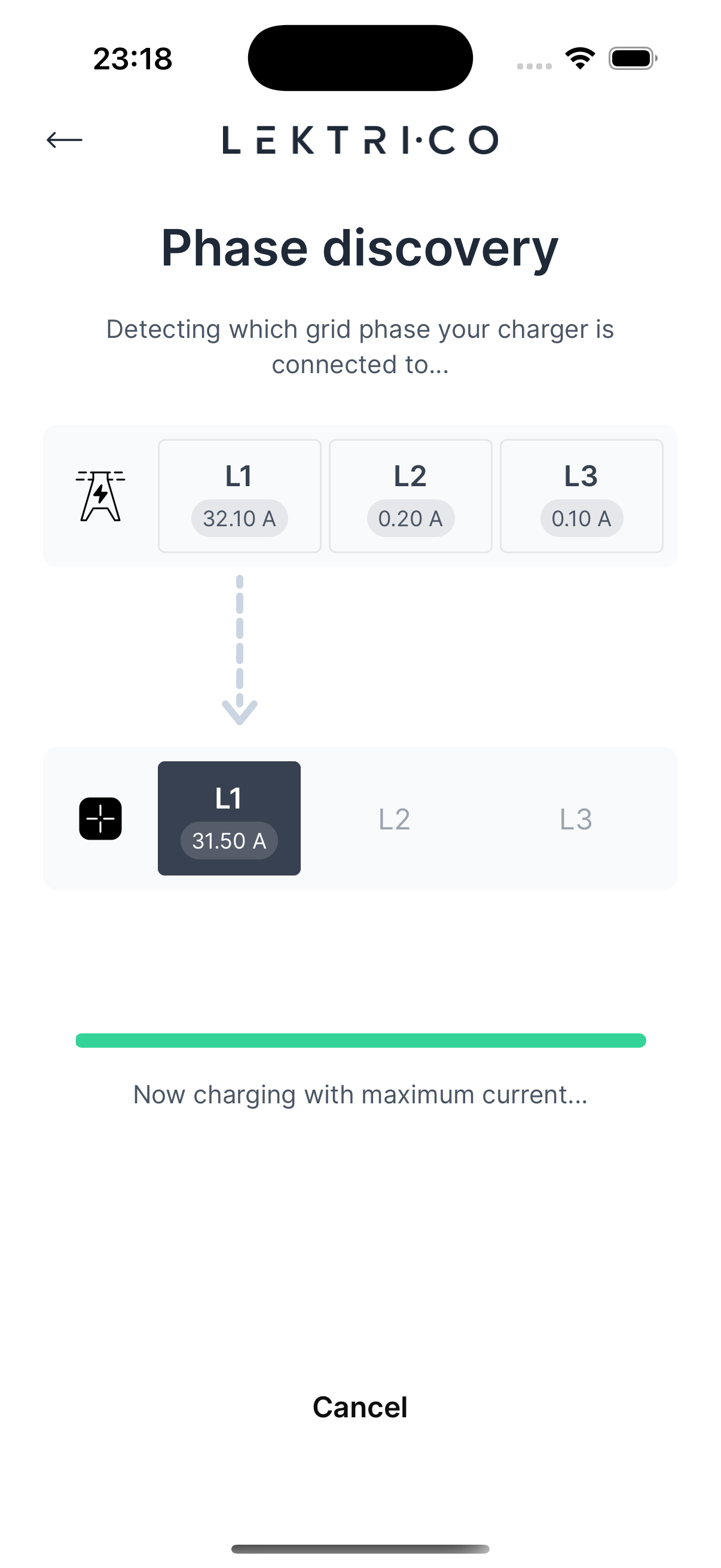
4. The app charges briefly at maximum current to detect the phase.
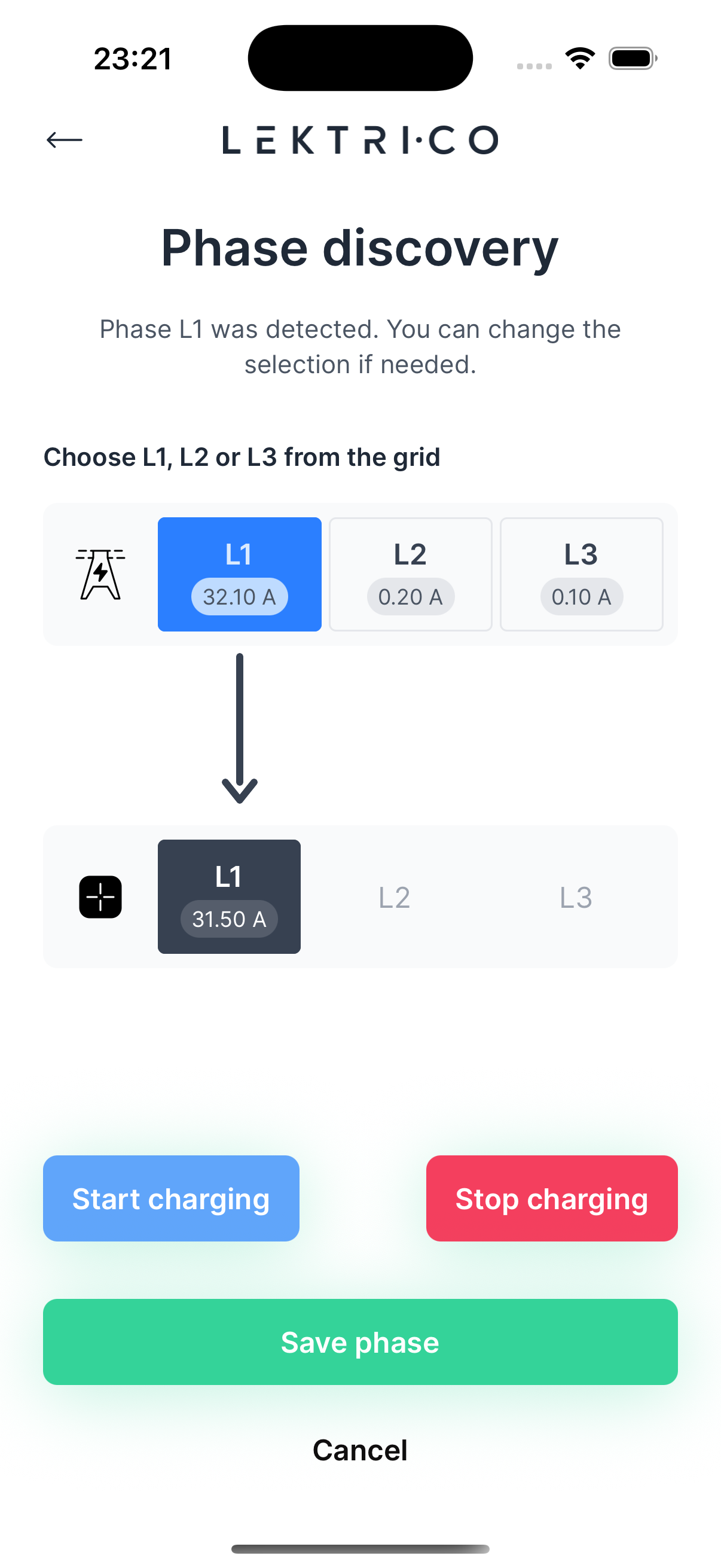
5. The result shows the detected phase (L1, L2, or L3) with a confidence level.
6. Confirm or manually adjust the selection.
7. Tap "Save phase" to save.
> NOTE: You can also select "Manual settings" to skip auto-detection and choose the phase yourself.
---
Energy Tariffs
Configure your energy rates so the app can calculate charging costs accurately.
General Settings Tab
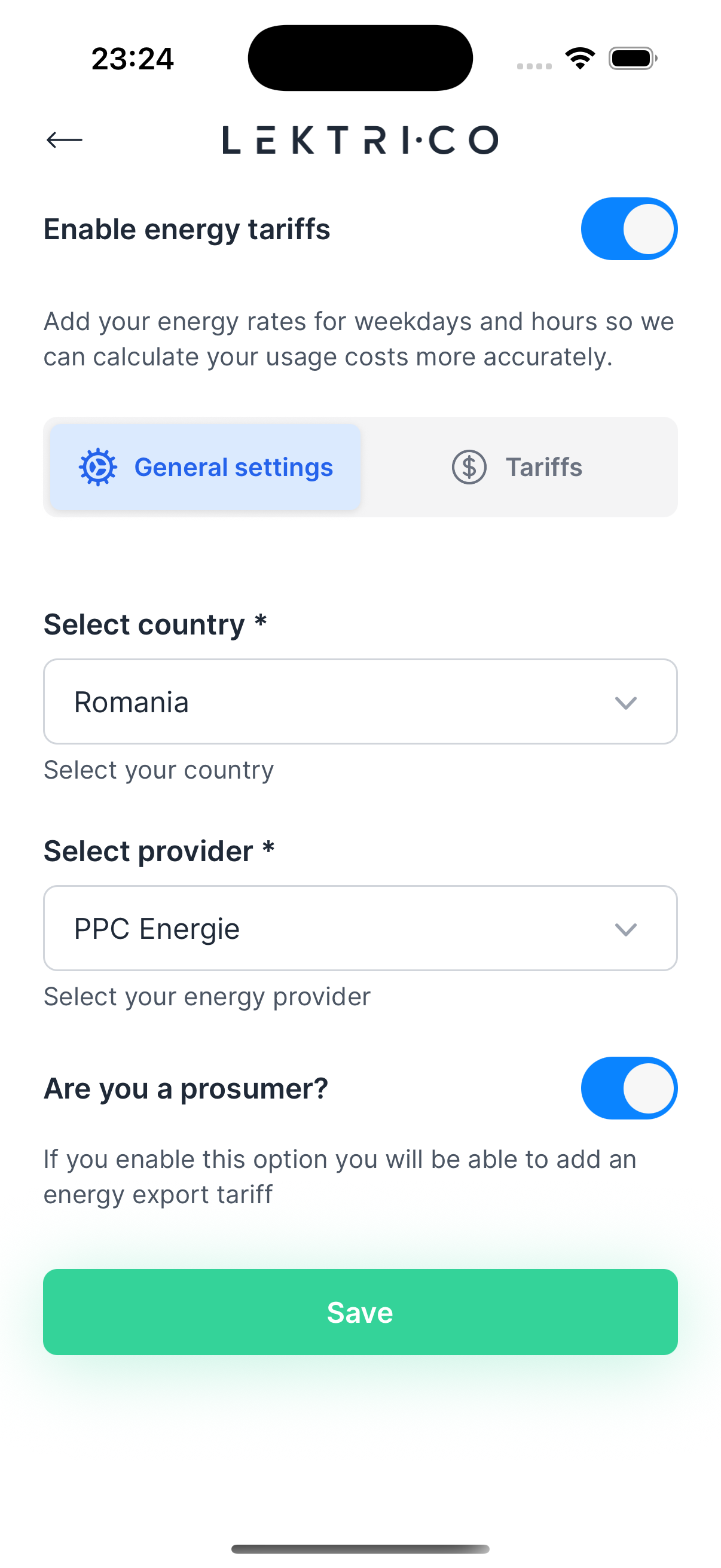
1. Select your Country and Energy provider.
2. Select your Currency.
3. Enable "Are you a prosumer?" toggle if you export energy to the grid.
4. Set export energy tariff per kWh (if applicable).
5. Configure VAT settings: value and whether it is included.
Tariffs Tab
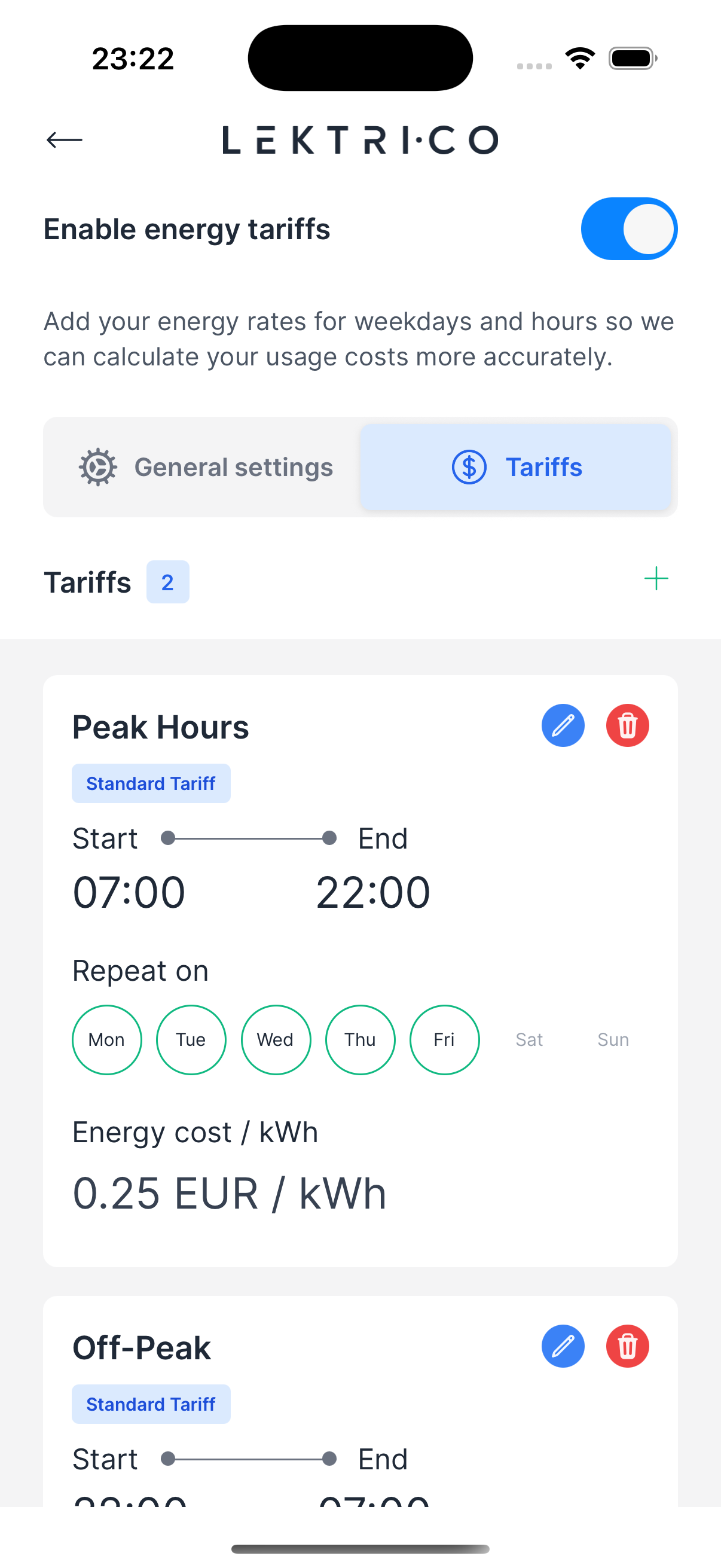
View the list of configured tariffs:
- Base Tariff — Covers the entire week (00:00-23:59). Create this first.
- Additional Tariffs — Time-specific tariffs for peak/off-peak hours.
Tap "Add new tariff" to create a new tariff.
Create a Tariff
1. Tap "Add new tariff" (or "Create Base Tariff" for the first one).
2. Enter an "Alias" (name for the tariff).
3. Set "Energy cost / kWh".
4. Select "Repeat on" days.
5. Set "Start" and "End" times.
6. Tap "Save".
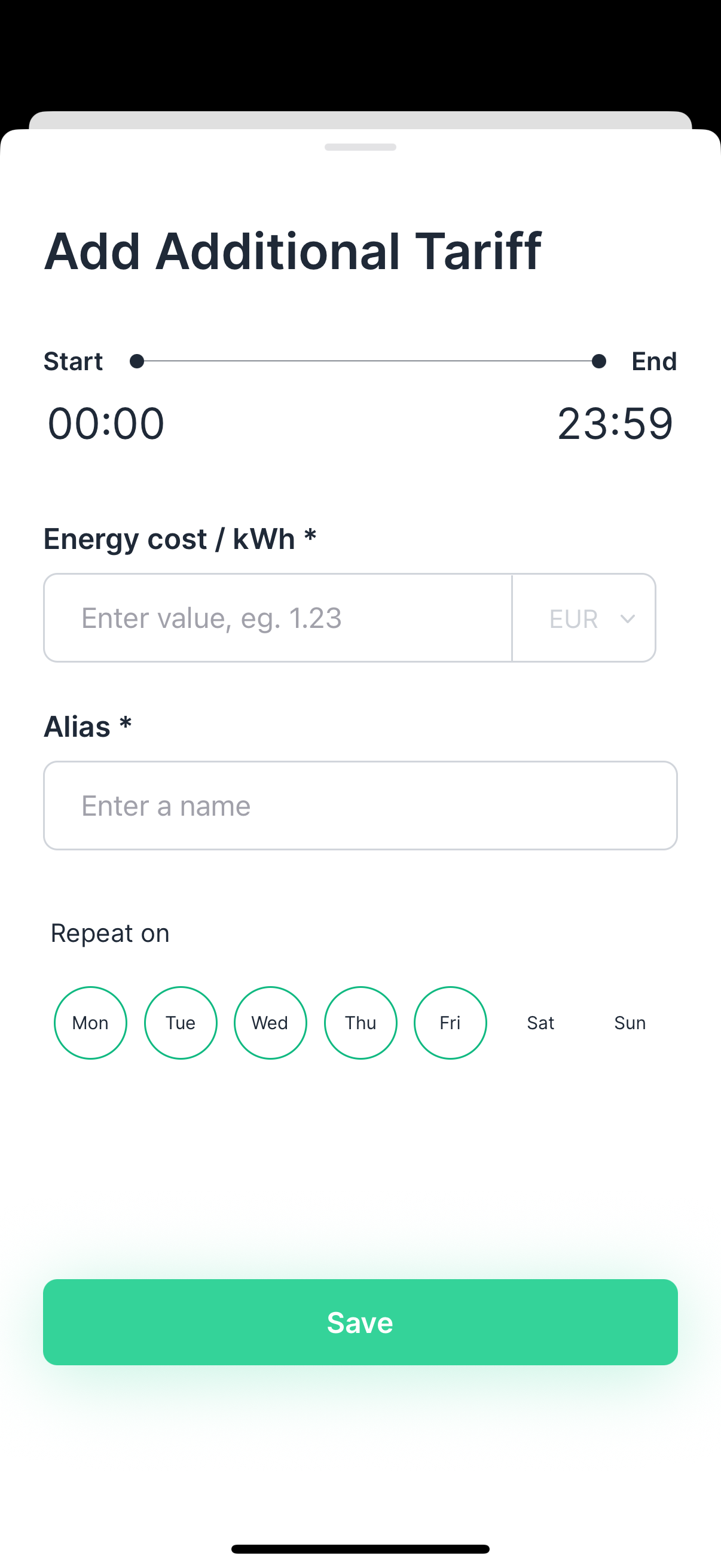
> NOTE: Tariffs cannot overlap. The base tariff covers all unspecified time periods.
---
EM Device Settings
View device information and manage your Energy Meter device.
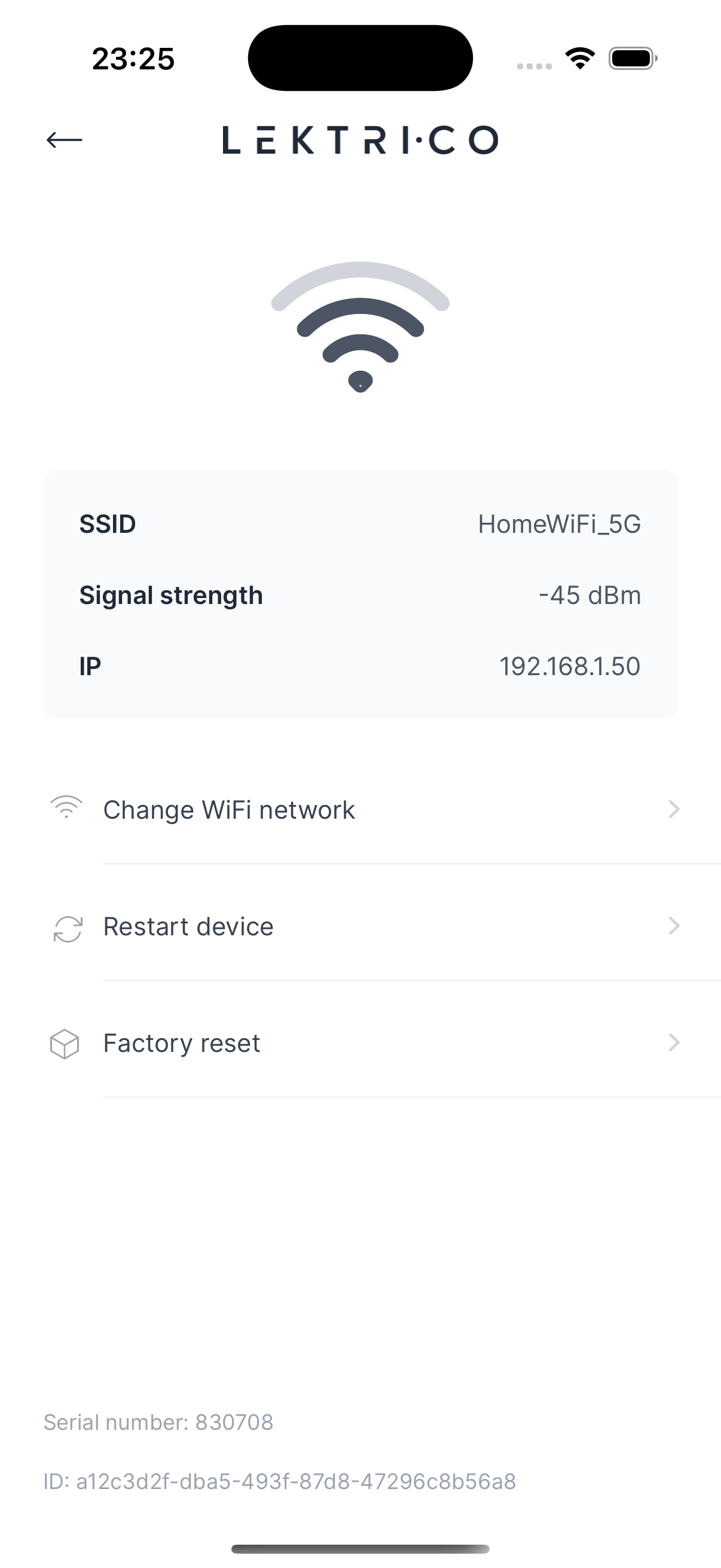
Available information and actions:
- Device info — SSID, Signal strength, IP, Serial number, Firmware version.
- "Change WiFi network" — Connect the EM to a different WiFi network.
- "Restart device" — Manually restart the EM device.
- "Factory reset" — Reset the EM to factory defaults.
> WARNING: Factory reset will delete all EM device settings and cannot be undone.
---
Reconfigure External EM Integration
If you need to change your external EM connection (e.g., switch from Shelly to SolarEdge), navigate to "Reconfigure external EM integration" from the Energy Management menu.