
Profile & User Settings
Profile Menu Overview
Access the profile menu by tapping your avatar or profile icon in the app.
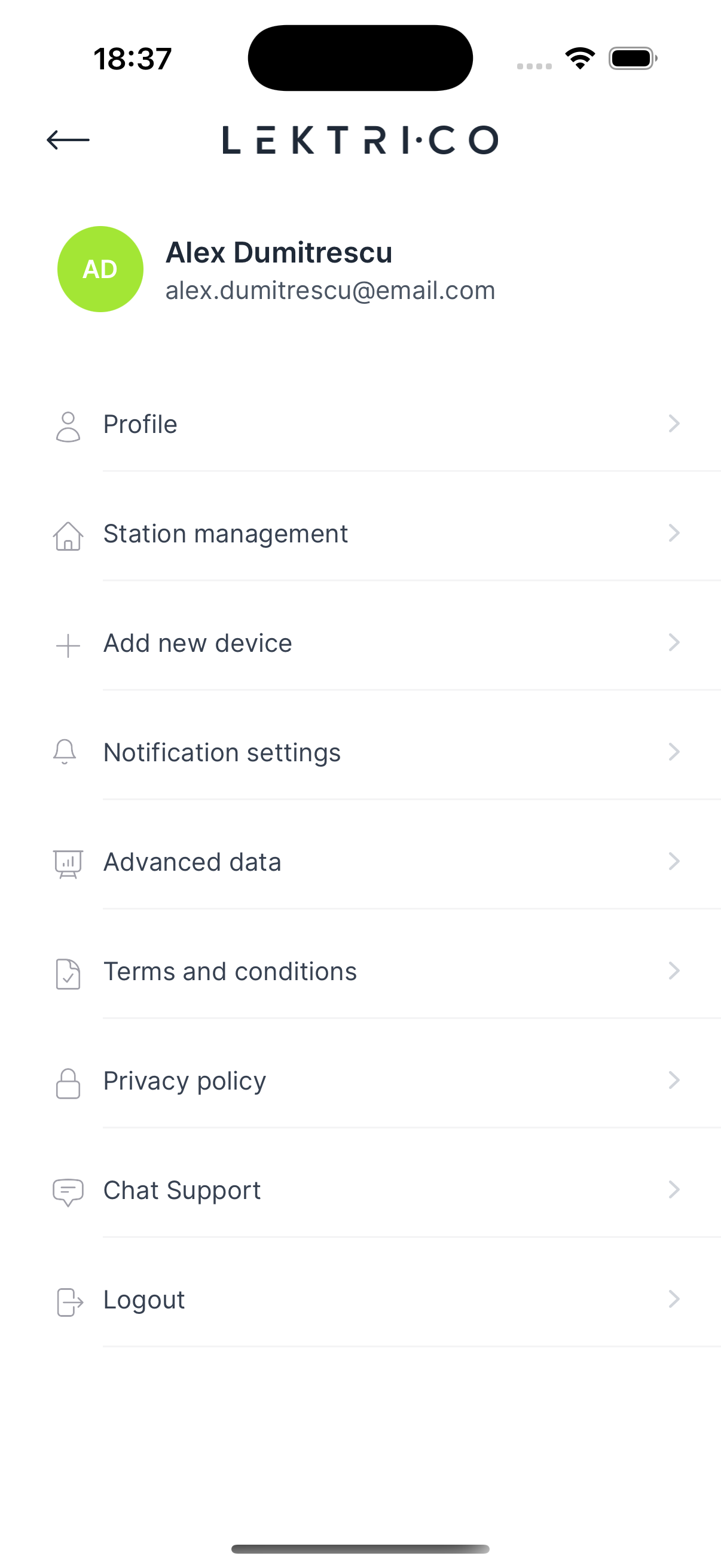
The menu displays your name, email, and avatar. Available options: Profile, Station management, Add new device, Notification settings, Advanced data, Chat Support, Privacy policy, Terms and conditions, Logout.
---
User Settings
Edit your personal information and account credentials.
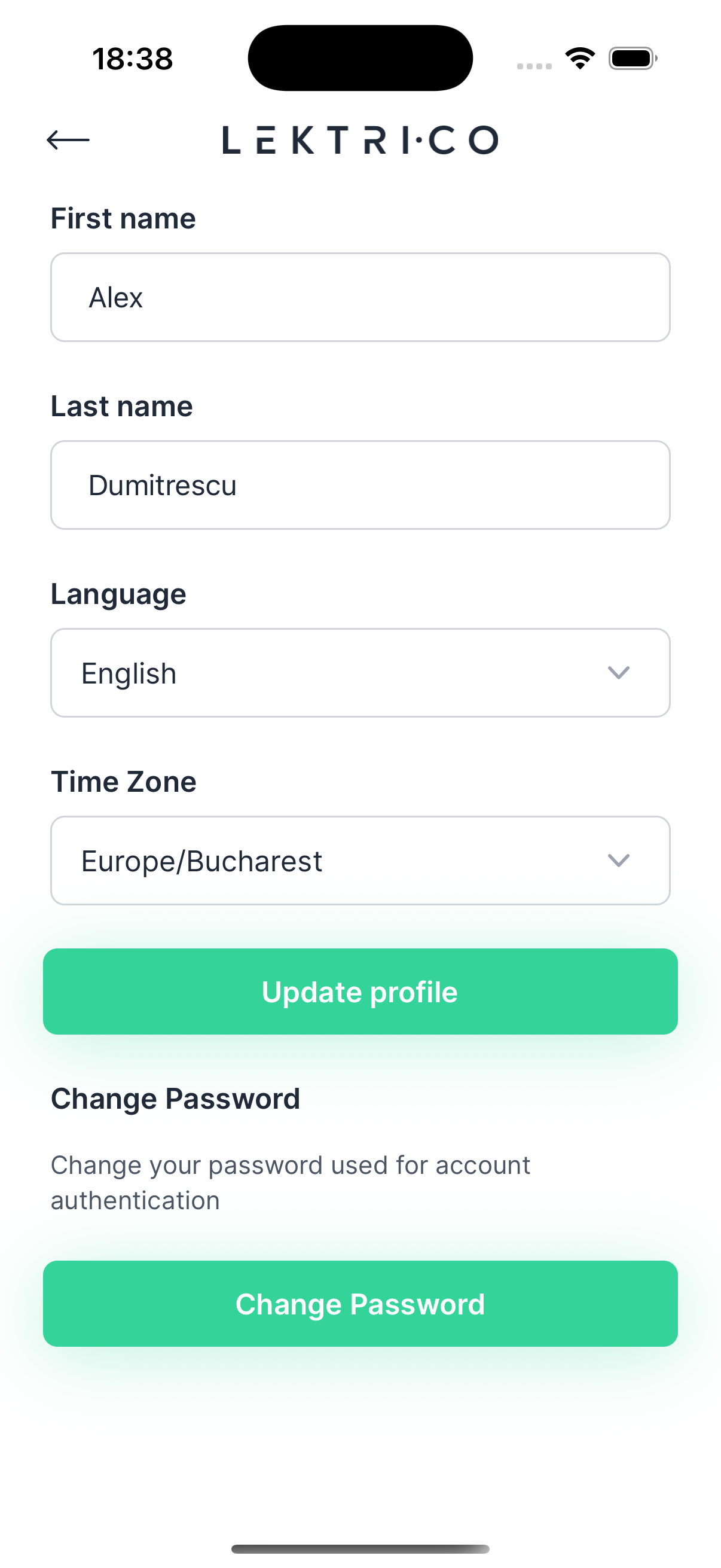
- First name and Last name — Edit your personal details.
- Language — Select your preferred language for the app.
- Time Zone — Set your timezone for accurate scheduling and history.
Change Password
1. Enter your current password.
2. Enter your new password.
3. Confirm the new password.
4. Tap "Save changes".
> NOTE: Password must be at least 8 characters long.
---
Station Management
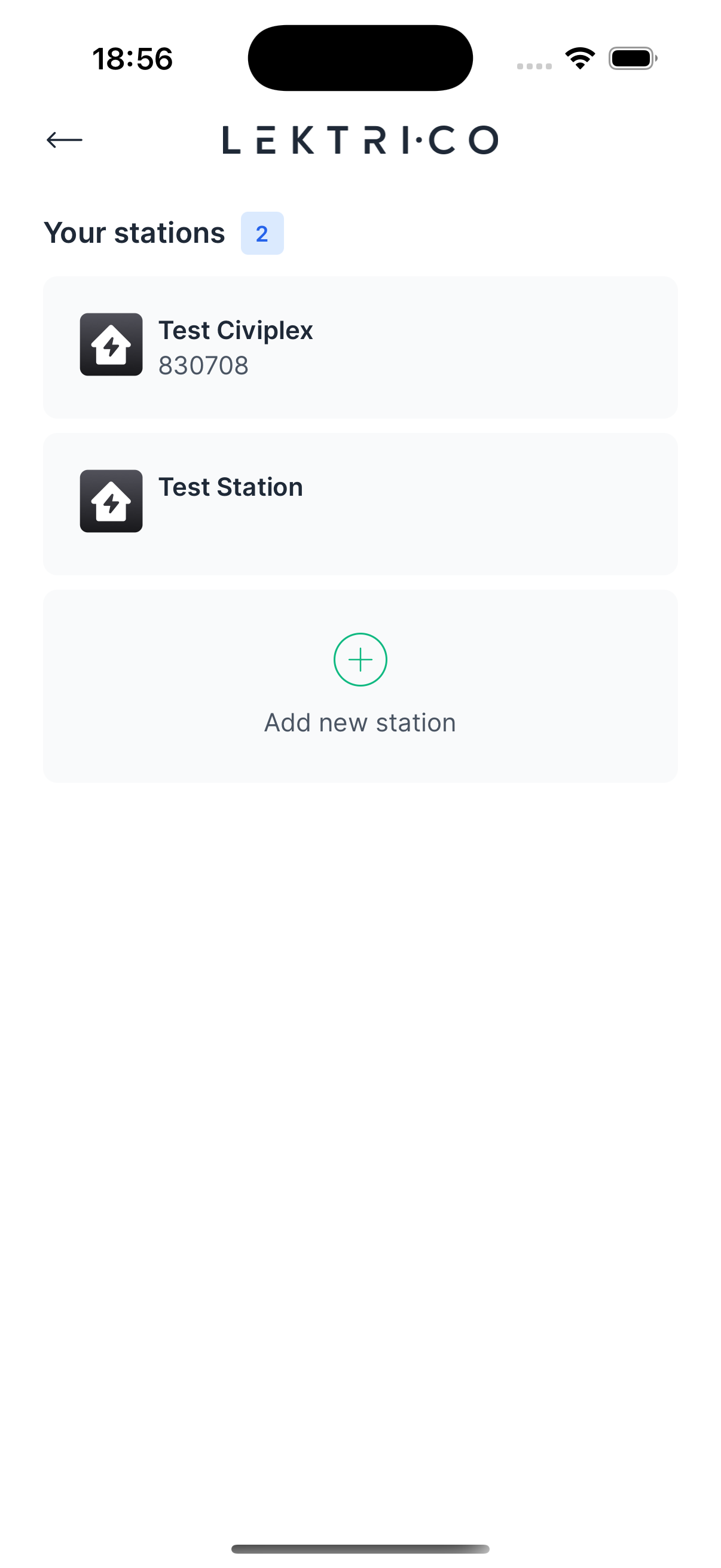
Manage your stations — each station groups your chargers and can be managed by the Energy Management system.
Add a New Station
1. Tap "Add new station".
2. Enter a "Station name".
3. Optionally toggle "Set as default".
4. Tap "Create station".
Edit a Station
1. Tap on an existing station.
2. Modify the station name or default setting.
3. Tap "Save".
Delete a Station
- Swipe left on a station to reveal the "Delete" action.
---
Add New Device
Start the device onboarding flow to add a new charger or energy management device.
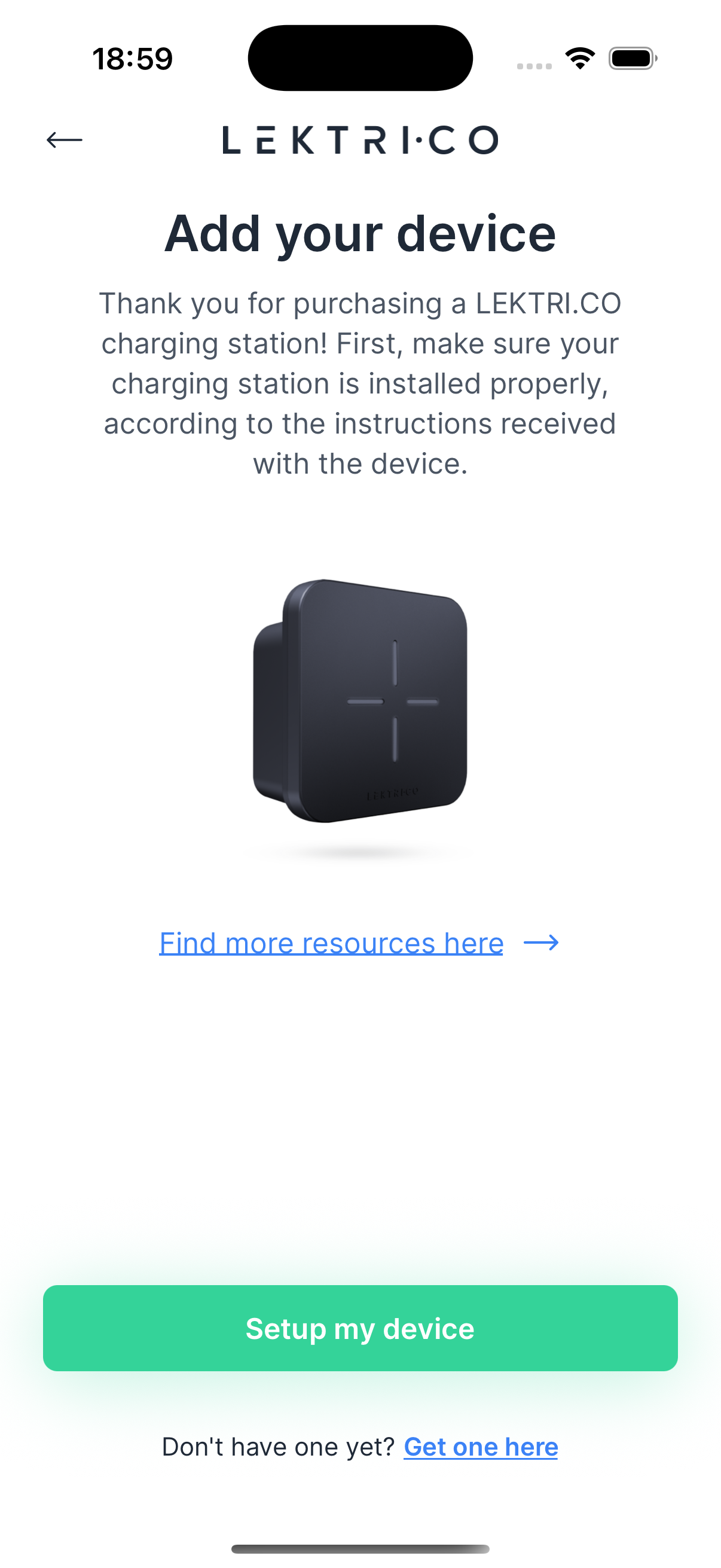
1. Tap "Add new device" from the profile menu.
2. You can start setup a Charger or Energy Module device.
---
Notification Settings
Configure how you receive notifications about charging events.
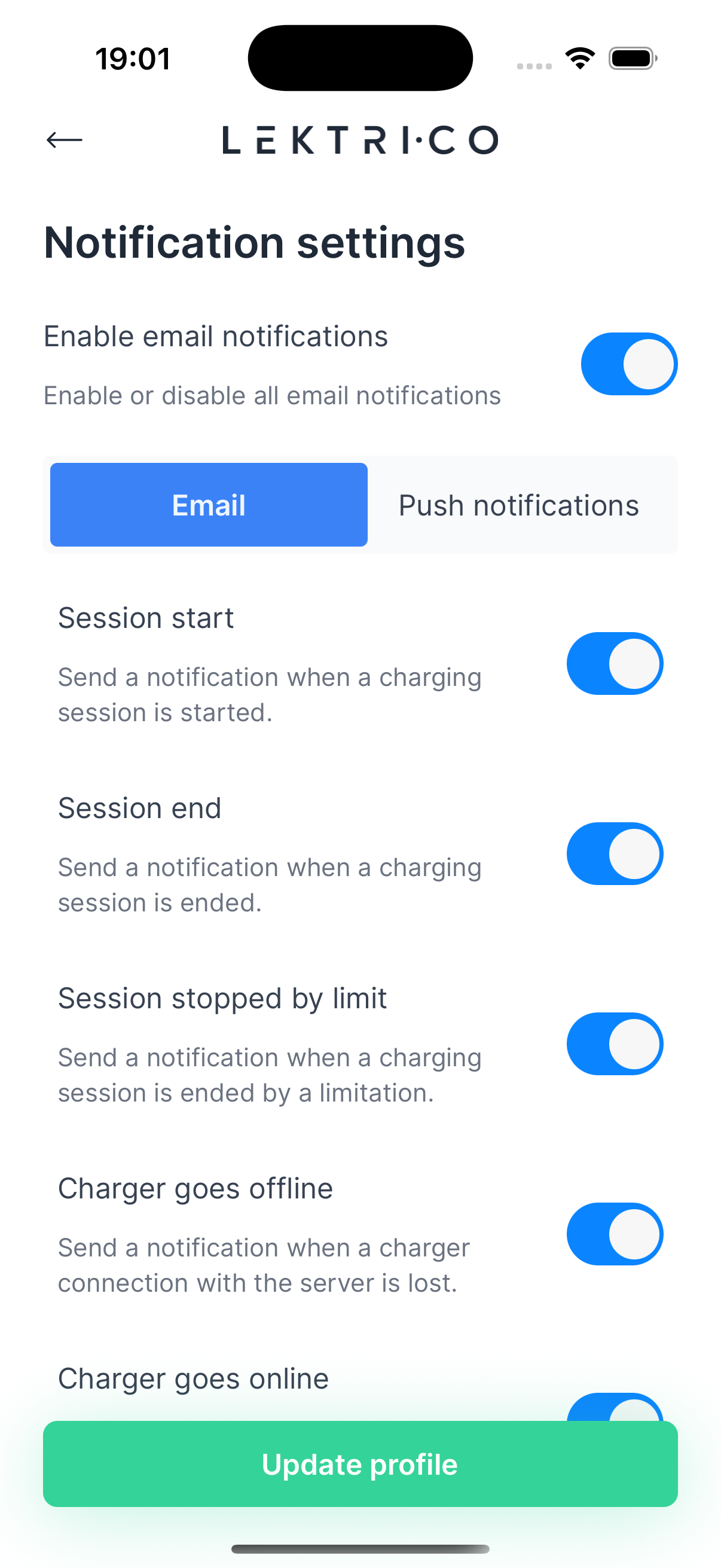
Email Notifications
- "Enable email notifications" — Master toggle for all email and push notifications.
- Individual toggles per event:
- Session start — When a charging session starts
- Session end — When a session ends
- Session stopped by limit — When a session is ended by a limitation
- Charger goes offline — When the charger loses server connection
- Charger goes online — When the charger reconnects
- Charger error — When the charger encounters an error
Push Notifications
- Same notification options as email, delivered as push notifications to your device.
- "Enable push notifications" — Master toggle for all push notifications.
---
Advanced Data
Toggle additional technical data on the charger dashboard.
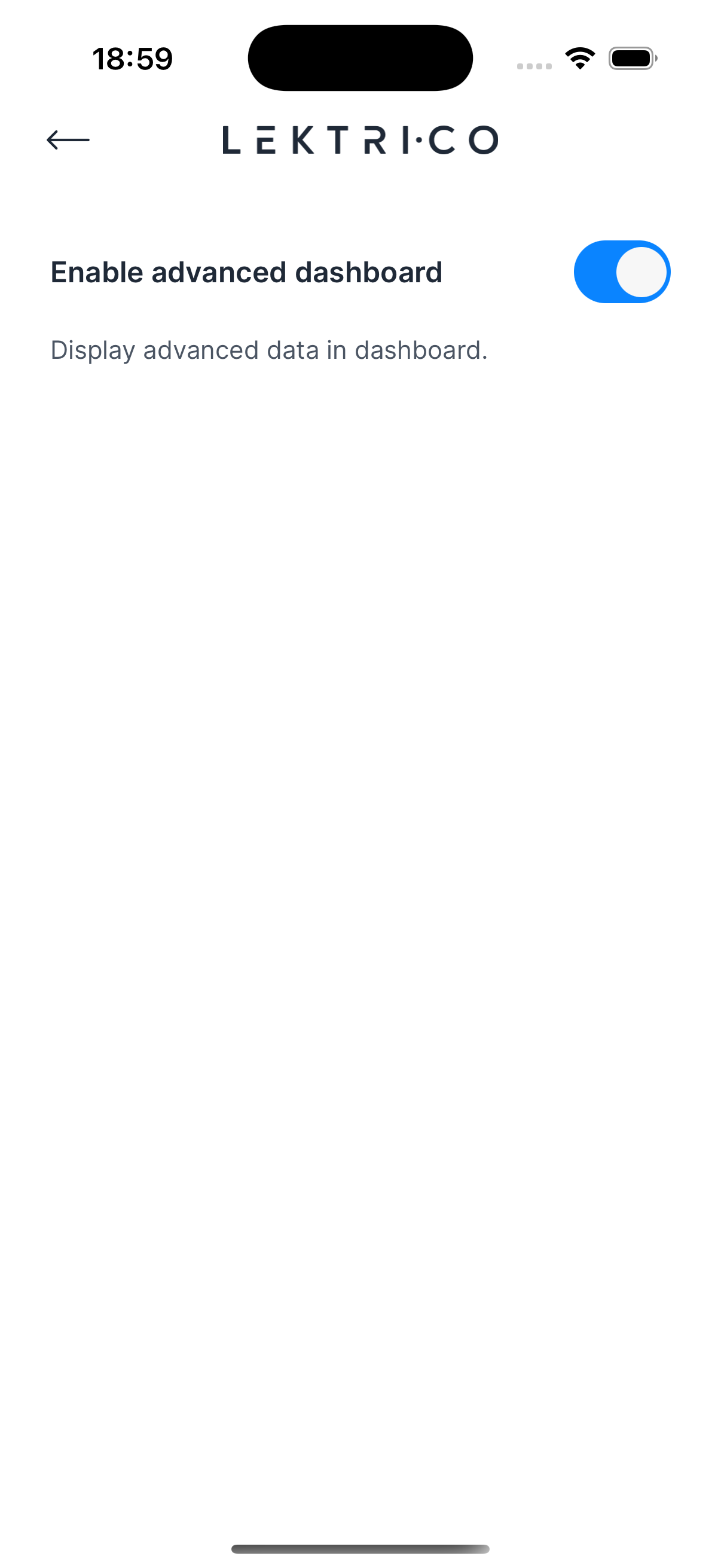
- Toggle "Enable advanced dashboard" to display per-phase voltage, current, power, and power factor on the charger dashboard.
---
Chat Support
Get help directly from the LEKTRI.CO support team.
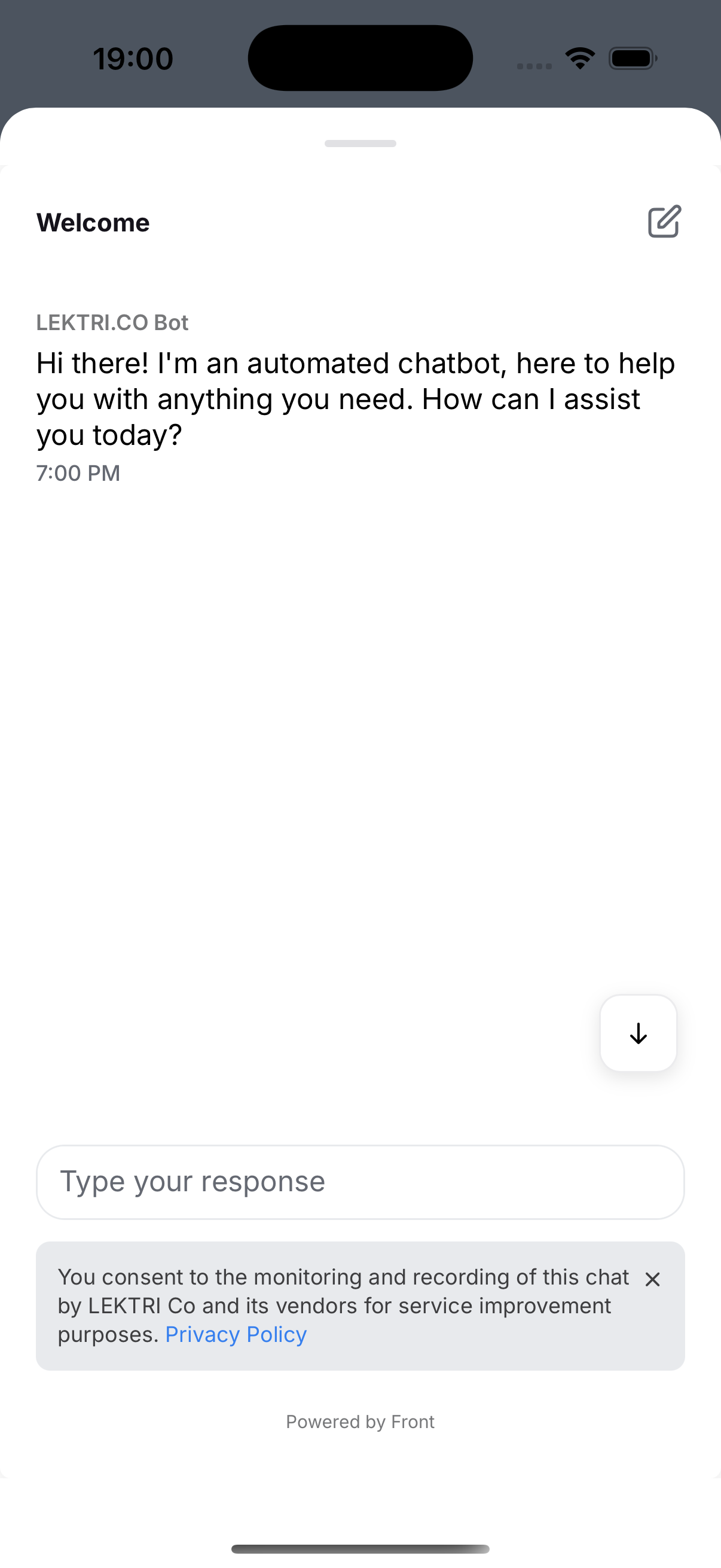
Tap "Chat Support" to open the support widget and connect with a support agent.
---
Logout
Tap "Logout" at the bottom of the profile menu to sign out of your account.